Run an existing flutter project on IDE
To begin, it’s essential to verify that your Flutter and Integrated Development Environment (IDE) setup has been configured accurately.
Execute the command flutter doctor in your terminal. If any issues arise during this process, make sure to address and resolve them promptly.
Then open your project. Once the project is open, Android Studio may prompt you to install the dependencies. If not, you can run the flutter pub get from the terminal in the project directory to fetch the dependencies.
After the dependencies are installed, you should be able to run the app.
Change App Logo and Icon
To change App logo and App Icon you need to follow these steps :
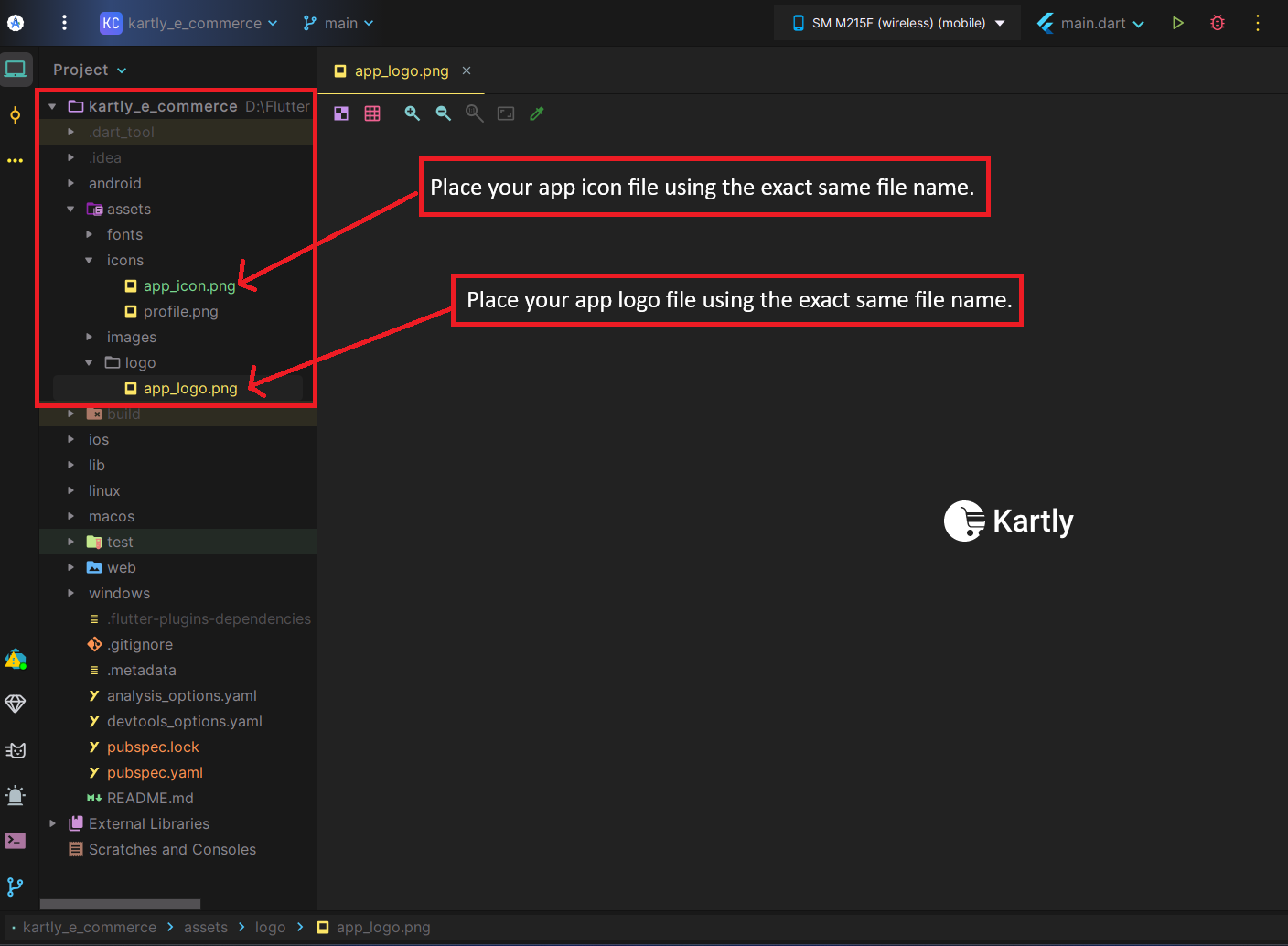
Go to <project>/assets/images/ and replace app_logo.png with your own logo.
Go to <project>/assets/images/ and replace app_icon.png for native splash icon & app icon.
Note
Please use the exact file name as described; otherwise, it will not work.
Change App Name
You need to set your app name in two different places.
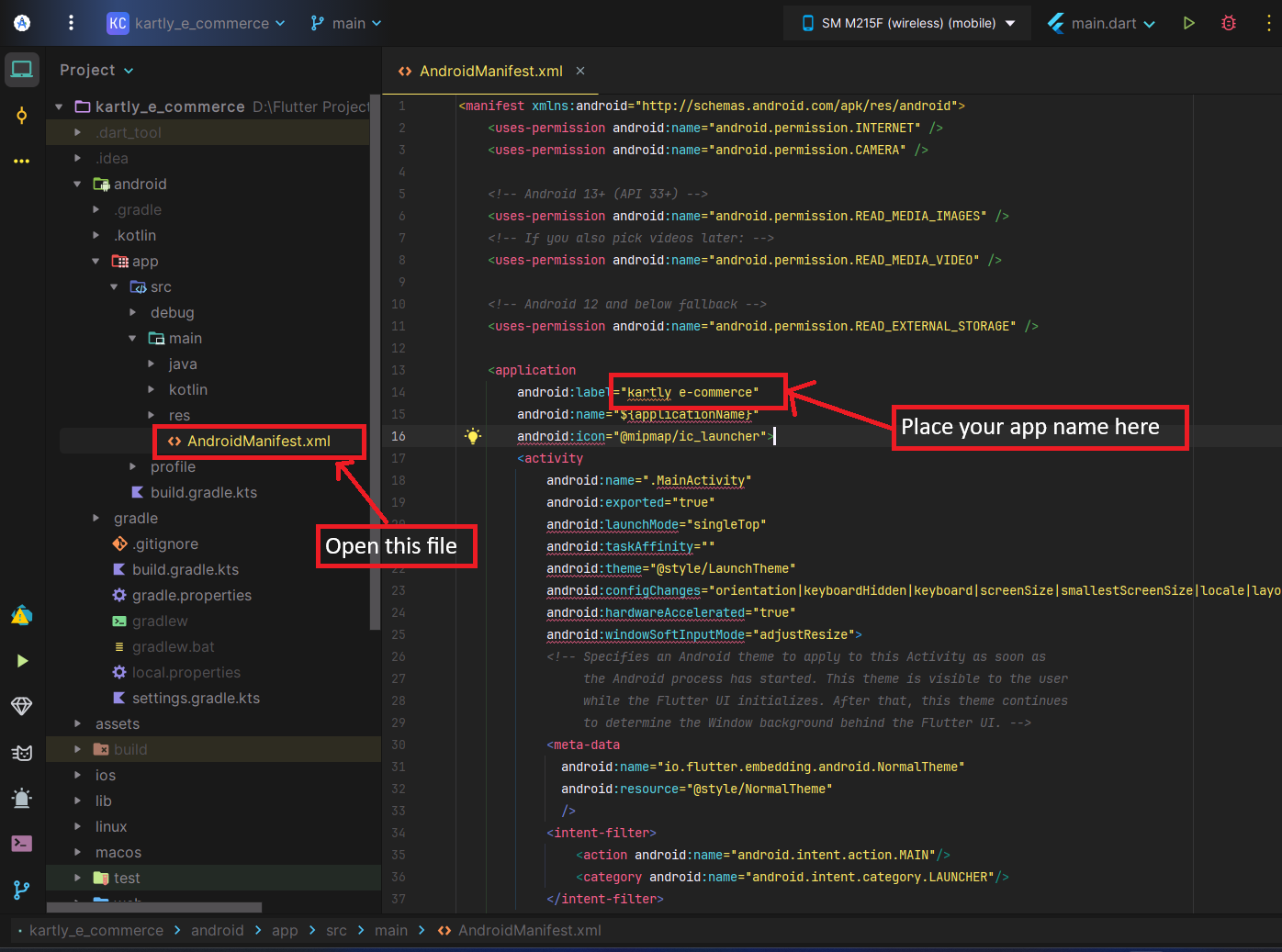
Change the value of label from <project>/android/app/src/main/AndroidManifest.xml
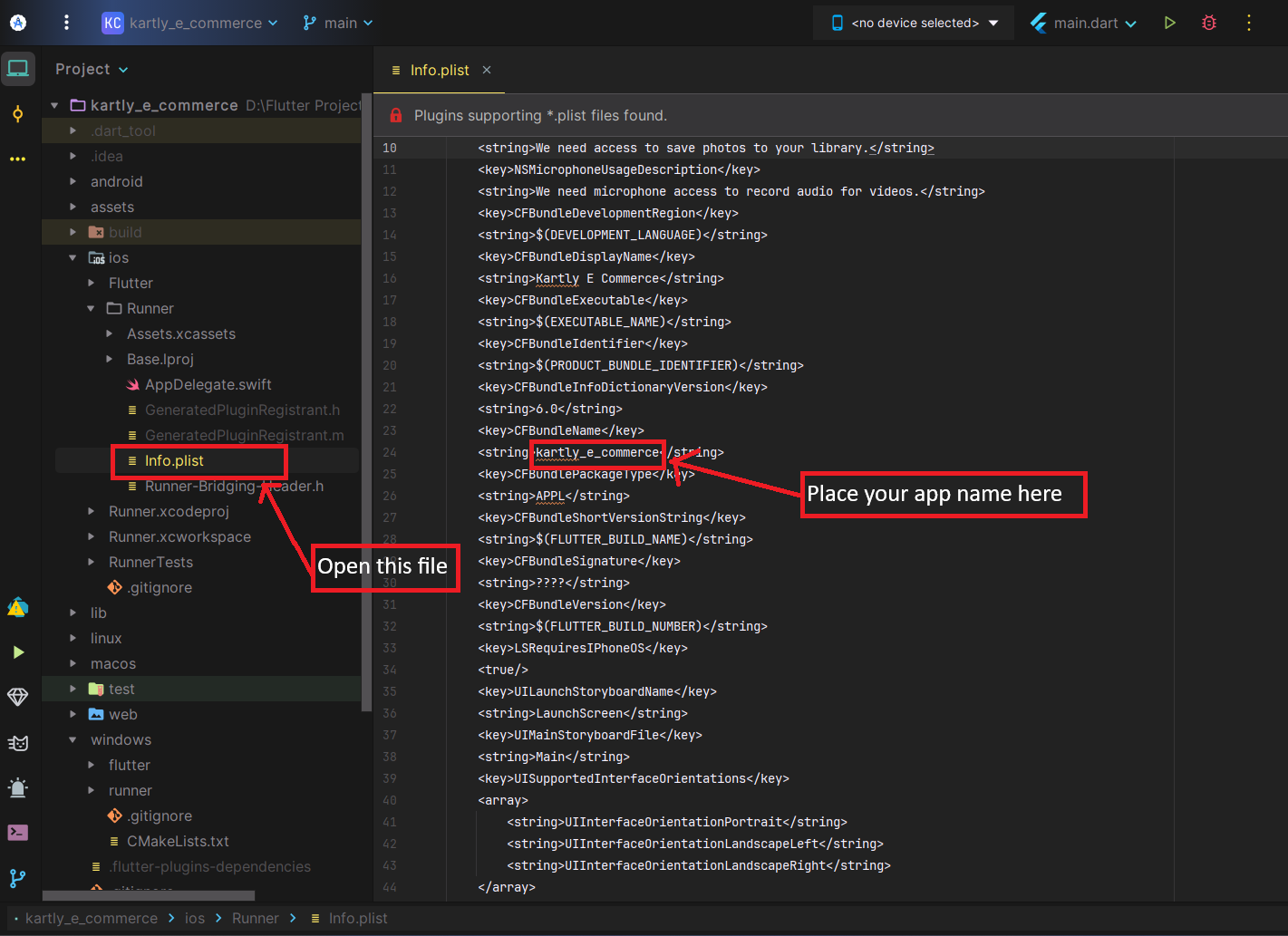
- Change the value of CFBundleName from <project>/iOS/Runner/info.plist/iOS/Runner/info.plist
Open Android Studio Terminal & Run
flutter clean
flutter pub get
dart run flutter_launcher_icons
flutter run
Change Base URL
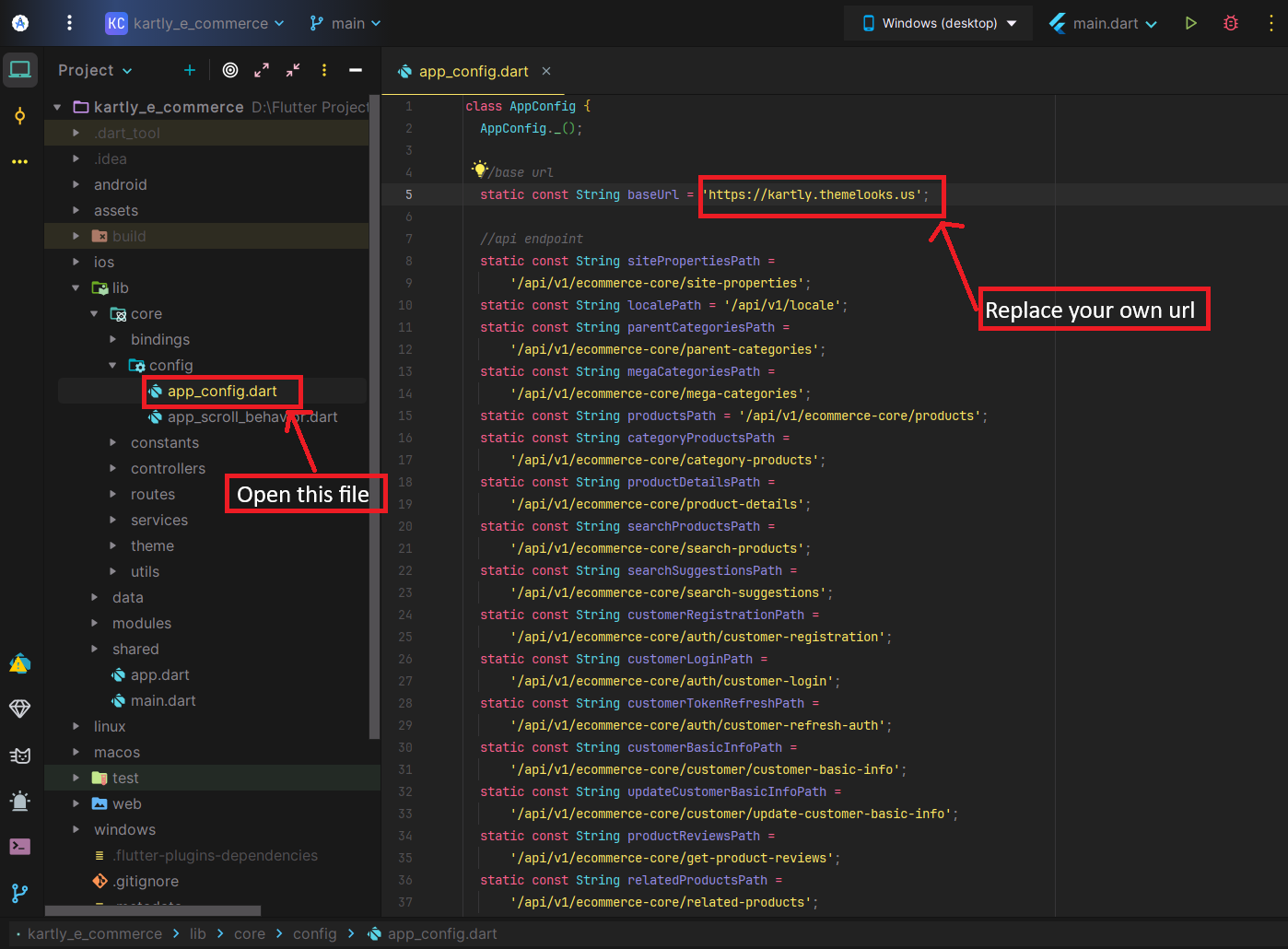
First you have to install your admin panel. For example: If your admin login url is https://your_domain.com/admin/login then the base url will be https://your_domain.com
Open <project>/lib/core/config/app_config.dart and replace baseUrl variable value with your own URL.
Ensure that don’t put slash(/) at the end of your base url.
Change App Package Name
First, your package name must be unique.
Note:
When running the command
dart run change_app_package_name:main com.example.kartly_e_commerce make sure to replace com.example.kartly_e_commerce with your own package name.
Open Android Studio Terminal & Run
flutter pub add change_app_package_name
dart run change_app_package_name:main com.example.kartly_e_commerce
flutter clean
flutter pub get
flutter run
Change App Privacy Policy & Terms & Conditions
When publishing your app on the Play Store or App Store, make sure to update the Privacy Policy and Terms & Conditions according to the latest guidelines of the respective store. Please review and edit these policies before submitting your app for approval.
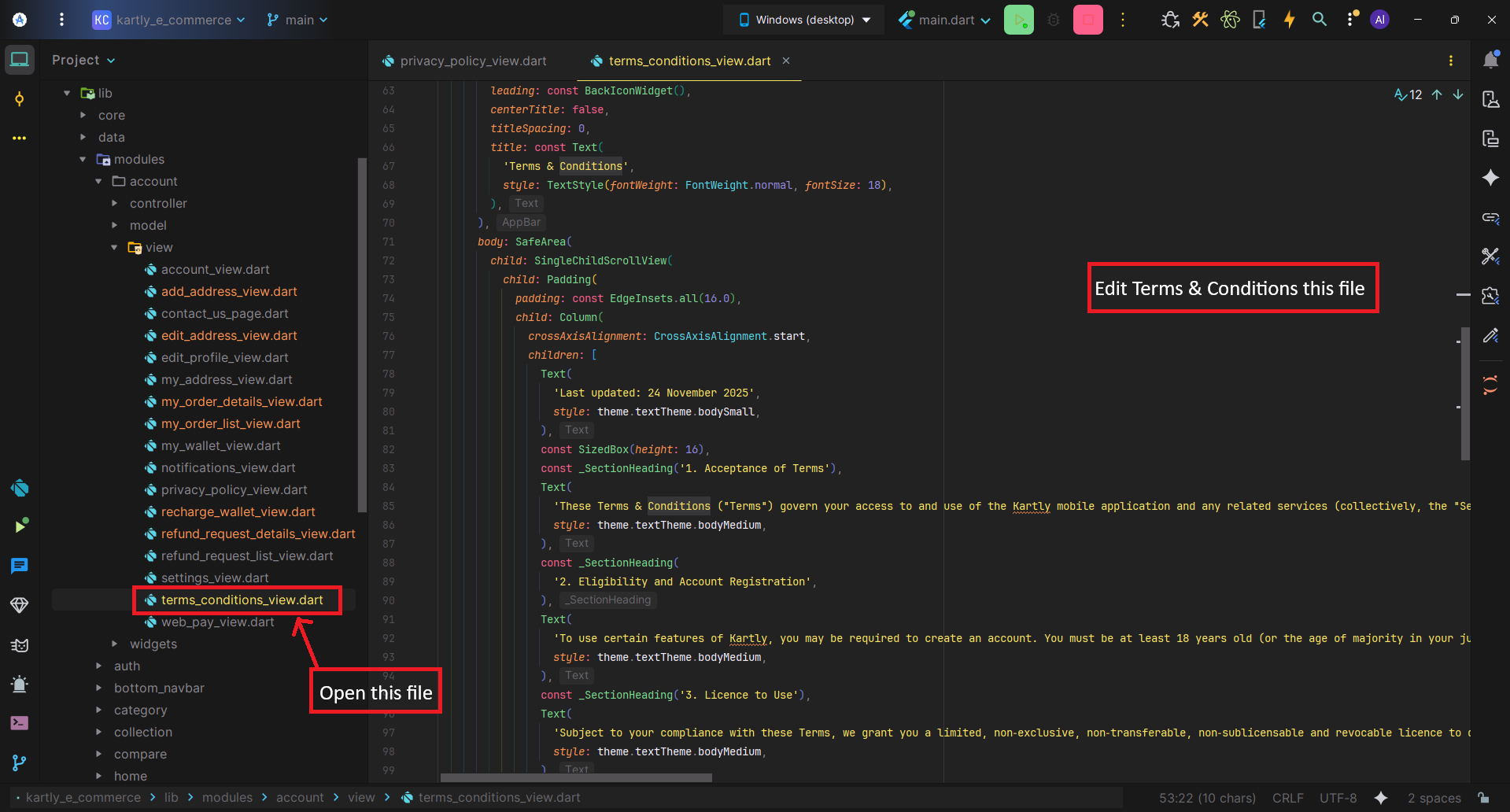
- Open the <project>/lib/modules/account/view/privacy_policy_view.dart file. Then edit this file and replace the content with your updated policy
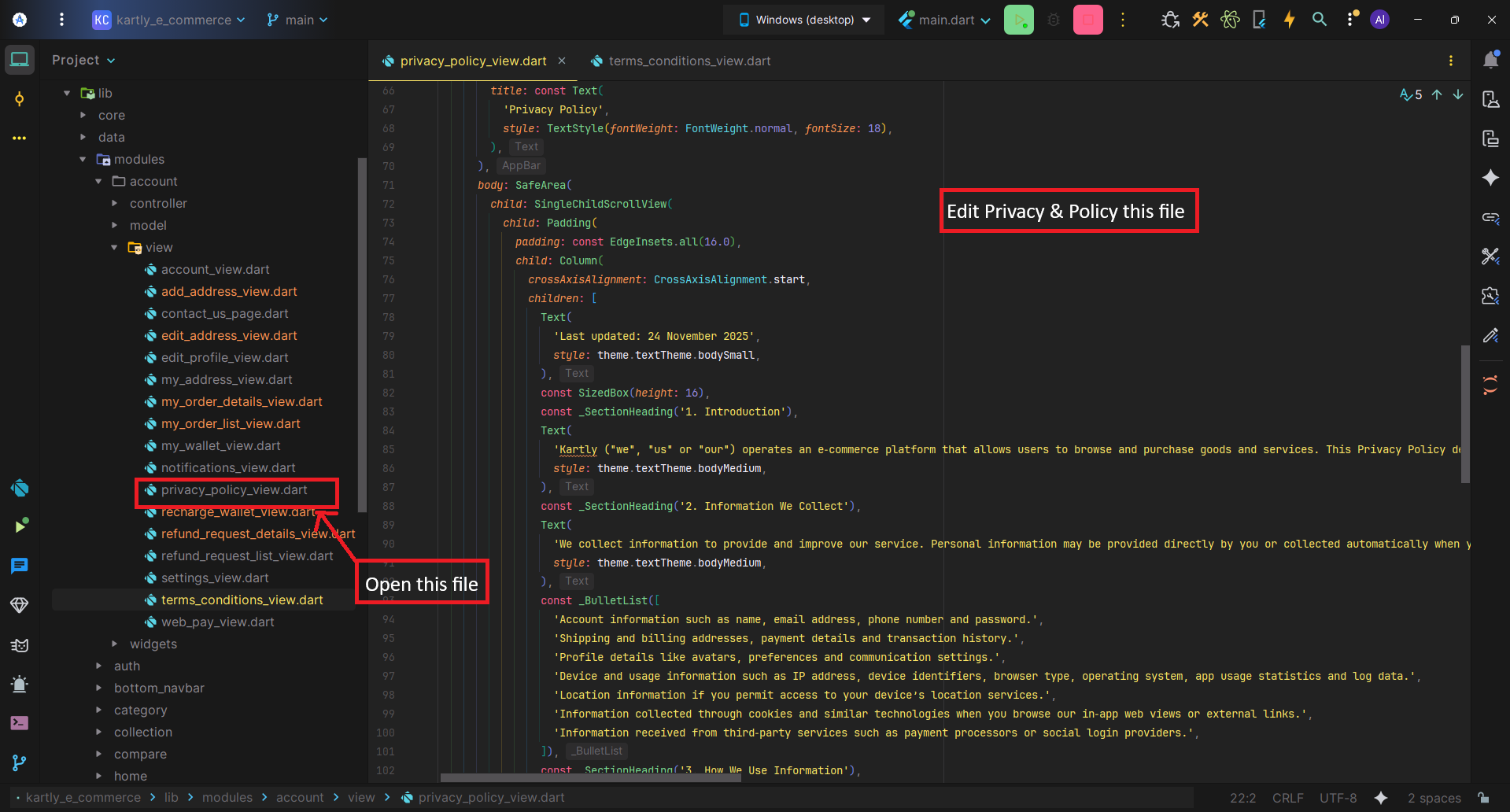
- Open the <project>/lib/modules/account/view/terms_conditions_view.dart file. Then edit this file and replace the content with your updated terms & conditions.